Advertisement

Friday, 15 January 2016

How To Set Marquee Effect (Running Text) In Title Bar

AOA,
I was searching for Title Bar Marquee effect to add in to my blog Tittle & finely i found this script in tipsandtricksfor  and now i want share this script with my friends

HOW TO ADD TI

1. Log in to your blogger account
2. Go to Design>>>Edit HTML
3. Find this code : </head>
4. Copy the code below
<script type='text/javascript'>
//<![CDATA[
function tb9_makeArray(n){
this.length = n;
return this.length;
}
tb9_messages = new tb9_makeArray(1);
tb9_messages[0] = "Welcome To My Blog";
tb9_rptType = 'infinite';
tb9_rptNbr = 5;
tb9_speed = 100;
tb9_delay = 2000;
var tb9_counter=1;
var tb9_currMsg=0;
var tb9_timerID = null
var tb9_bannerRunning = false
var tb9_state = ""
tb9_clearState()
function tb9_stopBanner() {
if (tb9_bannerRunning)
clearTimeout(tb9_timerID)
tb9_timerRunning = false
}
function tb9_startBanner() {
tb9_stopBanner()
tb9_showBanner()
}
function tb9_clearState() {
tb9_state = ""
for (var i = 0; i < tb9_messages[tb9_currMsg].length; ++i) {
tb9_state += "0"
}
}
function tb9_showBanner() {
if (tb9_getString()) {
tb9_currMsg++
if (tb9_messages.length <= tb9_currMsg) {
if ((tb9_rptType == 'finite') && (tb9_counter==tb9_rptNbr)){
tb9_stopBanner();
return;
}
tb9_counter++;
tb9_currMsg=0;
}
tb9_clearState()
tb9_timerID = setTimeout("tb9_showBanner()", tb9_delay)
}
else {
var tb9_str = ""
for (var j = 0; j < tb9_state.length; ++j) {
tb9_str += (tb9_state.charAt(j) == "1") ? tb9_messages[tb9_currMsg].charAt(j) : "____"
}
document.title = tb9_str
tb9_timerID = setTimeout("tb9_showBanner()", tb9_speed)
}
}
function tb9_getString() {
var full = true
for (var j = 0; j < tb9_state.length; ++j) {
if (tb9_state.charAt(j) == 0)
full = false
}
if (full) return true
while (1) {
var num = tb9_getRandom(tb9_messages[tb9_currMsg].length)
if (tb9_state.charAt(num) == "0")
break
}
tb9_state = tb9_state.substring(0, num) + "1" + tb9_state.substring(num + 1, tb9_state.length)
return false
}
function tb9_getRandom(max) {
var now = new Date()
var num = now.getTime() * now.getSeconds() * Math.random()
return num % max
}
tb9_startBanner()

//]]>
</script>

5. Paste above </head>
6. Save it

NOTE : Change the red words with your message (Welcome To My Blog)

Adding Meta Tag Description and Keyword To Blogger Template

Blogger is one of the most used platform in 21st century but on the other hand it have some problems most of the blogger template are not well optimized for Search Engine Optimization,you have to work hard to improve your title tags in blogger.Usually Blogger template is not well optimized with keywords and meta tags which does not play important role any more but to make a website look good you have to optimized it well.so today i will show you how you can add Meta tag Description and Meta tag keywords in your blogger template follow the steps as shown bellow.


1.Go to Blogger.com  >> Template >> Then Edit The Template >> Make Sure you (TICK) Expend the Widget option

2.No Search For (PRESS Ctrl+F) and find <head> and replace it with the following code    
<head>
<meta content='text/html; charset=utf-8' http-equiv='Content-Type'/>

<meta content='MetaTag Description' name='description'/>
<meta content='Keywords.' name='keywords'/>

3.Now its time to Optimize your template according to your website,

  • Replace MetaTag Description with your website's Description
  • Replace Keywords With the your website's keywords

And now hit Save button now your work is done soon Search Engine Bots will crawl your website and they will add your meta tag description and keywords to the search engine.

Source:My Blogger Lab

Wednesday, 20 May 2015

How To Add Social Counter Widget To Your Blog

Counter Widget is very important in today's blogging world be'coz it gives a very unique kind of look and feel to any blog. This widget is made purely by CSS so there will not come any kind of problem in the installing. Widget is made for three social network FB, Twitter, Google Plus, and this widget doesn't include any kind of JavaScript be'coz it should be compatible and well install.

Add Counter Widget in Blogger


  • Login to Blogger > Dashborad
  • Click on Drop Down Menu and select Layout
  • Add a HTML/JavaScript Gadget
  • Paste below code in it.

 <style type="text/css">
.container {
  margin: 0px auto;
  width: 300px;
  text-align: center;
}
.btn-sbm {
  display: inline-block;
  vertical-align: top;
  position: relative;
  margin: 0 5px;
  padding-top: 40px;
  width: 75px;
  font-weight: bold;
  text-align: center;
  text-decoration: none;
  border-radius: 8px;
  -webkit-box-shadow: 0 2px 2px rgba(0, 0, 0, 0.2);
  box-shadow: 0 2px 2px rgba(0, 0, 0, 0.2);
}
.btn-sbm:active {
  margin-top: 3px;
}
.btn-sbm:active .btn-sbm-action {
  padding-bottom: 3px;
  -webkit-box-shadow: inset 0 -3px rgba(0, 0, 0, 0.15), inset 0 -1px rgba(0, 0, 0, 0.15);
  box-shadow: inset 0 -3px rgba(0, 0, 0, 0.15), inset 0 -1px rgba(0, 0, 0, 0.15);
}
.btn-sbm:active .btn-sbm-action:after {
  bottom: 3px;
}
.btn-sbm-count {
  position: absolute;
  top: 0;
  left: 0;
  right: 0;
  line-height: 40px;
  font-size: 19px;
  letter-spacing: -1px;
  color: #555;
  text-shadow: 0 1px white;
  background: #e6eff5;
  border-width: 1px 1px 0;
  border-style: solid;
  border-color: #c5c5c5 #bbb;
  border-radius: 8px 8px 0 0;
  background-image: -webkit-linear-gradient(top, rgba(0, 0, 0, 0.03) 0%, transparent 40%);
  background-image: -moz-linear-gradient(top, rgba(0, 0, 0, 0.03) 0%, transparent 40%);
  background-image: -o-linear-gradient(top, rgba(0, 0, 0, 0.03) 0%, transparent 40%);
  background-image: linear-gradient(to bottom, rgba(0, 0, 0, 0.03) 0%, transparent 40%);
  -webkit-box-shadow: inset 0 1px rgba(255, 255, 255, 0.5), 0 1px rgba(0, 0, 0, 0.18), 0 2px rgba(0, 0, 0, 0.07);
  box-shadow: inset 0 1px rgba(255, 255, 255, 0.5), 0 1px rgba(0, 0, 0, 0.18), 0 2px rgba(0, 0, 0, 0.07);
}
.btn-sbm-count:before, .btn-sbm-count:after {
  content: '';
  position: absolute;
  top: 100%;
  left: 50%;
  margin-left: -6px;
  border: 6px solid transparent;
  border-top-color: #e6eff5;
}
.btn-sbm-count:before {
  margin-left: -7px;
  margin-top: 1px;
  border-width: 7px;
  border-top-color: rgba(0, 0, 0, 0.07);
}
.btn-sbm-action {
  display: block;
  position: relative;
  line-height: 32px;
  padding: 2px 0 6px;
  font-size: 14px;
  color: white;
  text-shadow: 0 1px 1px rgba(0, 0, 0, 0.4);
  border: solid rgba(0, 0, 0, 0.18);
  border-width: 0 1px;
  border-radius: 0 0 8px 8px;
}
.btn-sbm-action:after {
  content: '';
  position: absolute;
  top: 0;
  bottom: 6px;
  left: 0;
  right: 0;
  border-radius: 0 0 6px 6px;
  -webkit-box-shadow: inset 0 -1px 2px rgba(255, 255, 255, 0.25);
  box-shadow: inset 0 -1px 2px rgba(255, 255, 255, 0.25);
}
.btn-sbm-tweet {
  background: #83cfe8;
  background-image: -webkit-linear-gradient(top, #83cfe8, #6ebbd4);
  background-image: -moz-linear-gradient(top, #83cfe8, #6ebbd4);
  background-image: -o-linear-gradient(top, #83cfe8, #6ebbd4);
  background-image: linear-gradient(to bottom, #83cfe8, #6ebbd4);
  -webkit-box-shadow: inset 0 -6px rgba(0, 0, 0, 0.16), inset 0 -1px rgba(0, 0, 0, 0.15);
  box-shadow: inset 0 -6px rgba(0, 0, 0, 0.16), inset 0 -1px rgba(0, 0, 0, 0.15);
}
.btn-sbm-tweet:after {
  -webkit-box-shadow: inset 0 -1px 2px rgba(255, 255, 255, 0.5);
  box-shadow: inset 0 -1px 2px rgba(255, 255, 255, 0.5);
}
.btn-sbm-tweet + .btn-sbm-count {
  -webkit-box-shadow: inset 0 1px rgba(255, 255, 255, 0.5), 0 1px rgba(0, 0, 0, 0.12), 0 2px rgba(0, 0, 0, 0.04);
  box-shadow: inset 0 1px rgba(255, 255, 255, 0.5), 0 1px rgba(0, 0, 0, 0.12), 0 2px rgba(0, 0, 0, 0.04);
}
.btn-sbm-like {
  background: #6480bd;
  background-image: -webkit-linear-gradient(top, #6480bd, #3c5894);
  background-image: -moz-linear-gradient(top, #6480bd, #3c5894);
  background-image: -o-linear-gradient(top, #6480bd, #3c5894);
  background-image: linear-gradient(to bottom, #6480bd, #3c5894);
  -webkit-box-shadow: inset 0 -6px rgba(0, 0, 0, 0.15), inset 0 -1px rgba(0, 0, 0, 0.2);
  box-shadow: inset 0 -6px rgba(0, 0, 0, 0.15), inset 0 -1px rgba(0, 0, 0, 0.2);
}
.btn-sbm-plus {
  background: #626262;
  background-image: -webkit-linear-gradient(top, #626262, #404040);
  background-image: -moz-linear-gradient(top, #626262, #404040);
  background-image: -o-linear-gradient(top, #626262, #404040);
  background-image: linear-gradient(to bottom, #626262, #404040);
  -webkit-box-shadow: inset 0 -6px rgba(0, 0, 0, 0.08), inset 0 -1px rgba(0, 0, 0, 0.3);
  box-shadow: inset 0 -6px rgba(0, 0, 0, 0.08), inset 0 -1px rgba(0, 0, 0, 0.3);
}
</style>
<br/>
<div class="container">
     <a href="https://twitter.com/eblogup" rel="nofollow" target="_blank"rel="author"  title="Find us on twitter" class="btn-sbm">
      <span class="btn-sbm-action btn-sbm-tweet">Twitter</span>
      <span class="btn-sbm-count">150+</span>
    </a>
    <a href="http://www.facebook.com/eblogup" rel="nofollow" target="_blank" title="Find us on facebook" class="btn-sbm">
      <span class="btn-sbm-action btn-sbm-like">Facebook</span>
      <span class="btn-sbm-count">650+</span>
    </a>
    <a href="https://plus.google.com/110245128838344013738" class="btn-sbm" target="_blank" rel="author" title="Find us on Google+">
      <span class="btn-sbm-action btn-sbm-plus">Google+</span>
      <span class="btn-sbm-count">140+</span>
    </a><br/>
</div><a style="float:right; color: #ffffff"href="http://www.eblogup.blogspot.com">Get This</a>

 Save your Widget and You are Done.


Make  Changes....!
Replace it eblogup with your Twitter username.
Replace it eblogup with your Facebook username
Replace it 110245128838344013738 with your Google Plus id.

Saturday, 28 March 2015

7 Smartphone Photography Tips & Triks

7 Smartphone Photography Tips & Triks

Aslaam o Alikum Dosto!
agr aap koi smartphone istemal ker rahin hain tu aaj main apke saath aisi video share kerne ja raha hoon jis se aap khud apne aise photo bana skte hian jo bilkul professional lagingey mazeed video mulahiza kere.


Friday, 27 March 2015

Install GenyMotion on PC/Windows

Install GenyMotion on PC/Windows

Tutorial on How to Install GenyMotion on PC - GenyMotion Review
If you are looking for BlueStacks Alternative, then I would recommend you to try GenyMotion Android Emulator. You can test Android Apps for Free and it is quite simple to install GenyMotion on PC or Windows Machine without having any technical knowledge. Do follow this video tutorial carefully to learn how to create a free account with GenyMotion and installation procedure of the same Android Emulator.


Friday, 13 March 2015

How To Make A Smartphone Projector?

How To Make A Smartphone Projector?

Aslaam o Alikum Dosto!
Agr aapke paas koi bhi Smart phone hain aur aap us se LCD ka fayda uttana chahte hian tu nichey video ko ghoor se mulahiza farmaye ye video dhek ker mujhe nhai lagta ke aapko koi LCD khareedne ki zarorat hogi bas video ko zara ghoor se dheke.


Wednesday, 18 February 2015

How to Reset Evo Wingle Settings

If you have disturbed Evo wingle authentication , Network keys , Forgot admin password or any other error, Follow the simple steps to reset your evo wingle settings to default settings.


1) Remove Wingle Cover.


2) You will see a tiny button with the label "Reset"

3) Plug USB in laptop or in charger

4) Press that button with the help of pin (press it for 15 seconds then release)


5) Your Default Network Settings Will Be Recovered.
(If it worked kindly write a comment Thanks.) or like our page.

Copied.......

Tuesday, 17 February 2015

How to download Facebook videos on android device Urdu/Hindi

How to download Facebook videos on android device Urdu/Hindi

How to download Facebook videos on android...


How to earn money with Adf.ly Urdu/Hindi

Earn money for each visitor to your shortened links with adf.ly! Use a URL shortener service that pays


How to earn money with Adf.ly Urdu/Hindi by eblogup


Tuesday, 3 February 2015

Install Windows 10 on VirtualBox step by step video


Install Windows 10 on VirtualBox step by step video


Process of Installing Windows 10 on VirtualBox or PC
Would you like to test new Windows 10 Technical Preview? Then instead of installing it directly on PC, better run Windows 10 Technical Preview on VirtualBox. Follow this process to know how.

How to Turn Laptop into WiFi Hotspot
http://www.youtube.com/watch?v=ALNMRpSWEn4

Install Windows 10 on VirtualBox [How To]
https://www.youtube.com/watch?v=c3ujciPKBvU

How to Install Android OS on PC Step by Step


When we talk about Android, what’s the first thing that comes to your mind? I bet 99% of the people will answer smartphones or tablets (unless there’s an app that you’re crazy about and that’s what you prefer). However, Android, being the open source platform that it is, offers much more flexibility in terms of the hardware that it can run on, and so there’s Android out there that can run just fine on x86 computer architecture as well. Yup – full-blown Android running natively, not the likes of BlueStacks! In this post, we’ll show you exactly how to get that.

Follow these steps to know how to install Android OS on PC.
Replicate the same process at your end to operate Android 4.3 OS on PC. This can be done using VirtualBox Manager and with Android x86 4.3 Version of Image. Download those files from the links provided below.

How to Install Android OS on PC Step by Step


Transcript:
Here is the new tutorial on how to install Android on PC. In this tutorial I'm going to show you the installation procedure of Android on PC particularly 4.3.3 version of Android which is Jelly Bean. Since the current running version of Android is 4.4, the image file is not available yet. When it is available in the market, I will update the link here in the description of this video.

Okay! To install Android on PC you need to have couple of files. I have provided the links here in the end of this post, download these two files I'm showing here. One is virtual box manager and other one is Android 4.3 image file. Download these couple of files from the links provided in the end of this post.

First of all you need to install this virtual box manager on your PC. I have already installed it and just double click on the set file and follow the onscreen instructions. You no need to change any settings during the installation. After installing virtual box, you will get an icon Oracle VM Virtual box. This is the first step. The first step is to install Virtual box manager on your PC. The second step is, open your Oracle VM virtual box manager and select NEW to create your virtual machine. Name your machine and here I'm naming it as Android 4.3. In the type of operating systems, select LINUX and the version is OTHER LINUX. Click NEXT.

Here you need to have minimum RAM memory of 512 MB. I'm here changing it as 1024 which means 1GB of RAM. Click NEXT.

Here you need to create your Virtual Hard Drive. So, for that click CREATE A VIRTUAL HARD DRIVE NOW. Just click Next.

Here you need to select FIXED SIZE instead of DYNAMICALLY ALLOCATED. Click Next.

Here is our Virtual Machine Name and I'm allocating a memory of 2GB. Click CREATE.
It will take few seconds to create your virtual hard drive. We will get back to you after the creation of Virtual Hard Drive completes. Soon after the completion of creating your virtual hard drive, you will get the dashboard again.

You will find your Virtual machine name Android 4.3 which is powered off. So, now you need to link up your android image file with this virtual machine. For that go to SETTINGS section, in here go to STORAGE and here you will find EMPTY (no disc image file selected). Click this EMPTY and here you will find a disc image, click on that and select choose a virtual CD/DVD disc file.

Just linkup your android image file with this virtual device. So my file is on the desktop. I moved to desktop and selecting Android x86 version. So, you will find image file name here. The type is image and the size is 199.00MB and click OK.

Now just click START to start your Android 4.3 on your PC. When you get this window select the first option to run your android x86 version without installation. Just click Enter to select the one.

Here we go. The logon screen of Android. Configure your settings. Click Skip when it asks you to add WiFi connection.

Tuesday, 2 December 2014

How to Reset Printer Epson T60 and Epson T50 Counter


How you can reset printer counter for Epson T60 or Epson T50 printer?

Option 1: Using Epson Adjustment Programs with Waste Ink Counter option for Epson T60 or Epson T50 printer:


Download Epson Adjustment Programs - Waste ink Counter for Epson T60
Download Epson Adjustment Programs - Waste ink Counter for Epson T50 

Step 1: After download Epson Adjustment Programs we have: Adjprog.exe file.
You click and run file: Adjprog.exe
Screen of program look like:
 

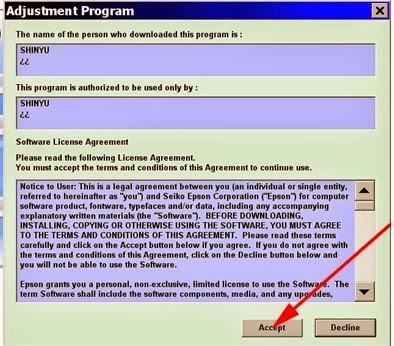
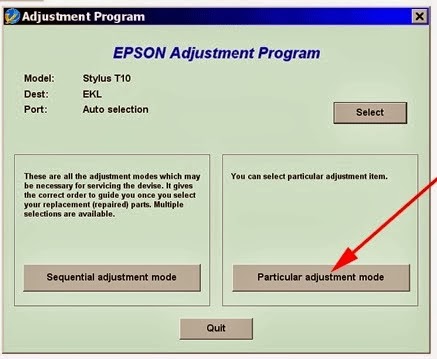
Step 2: In the Program Software License Agreement Screen you click to [Accept], then click to [Select] button for choose printer model you want process Waste Ink Counter.
After that you click to [Particular Adjustment Mode] like this picture:
 

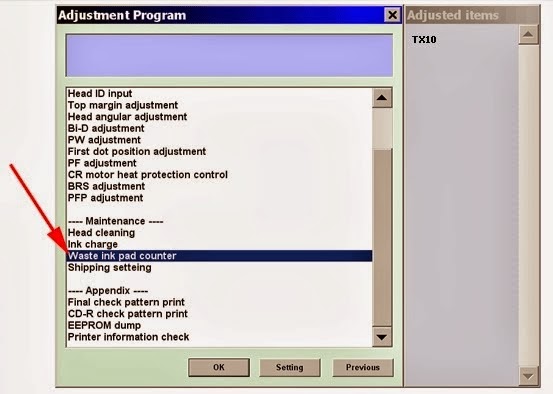
Step 3: Select the 'Waste ink reset' option and click left mouse [OK]:
 

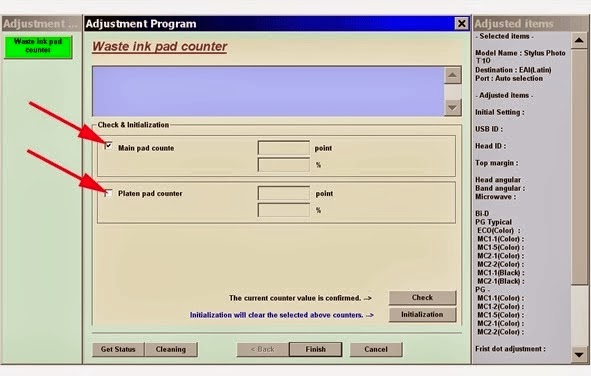
Step 4: Check < Main pad counts > and < Platen pad counter > radio button after that select button [Initialization];


Step 5: Restart your printer to complete.


Option 2: Using Press keys for reset printer Epston T60 or T50 counter.

Step 1: Power supply for your printer.
Step 2: Start the printer by Press power button.
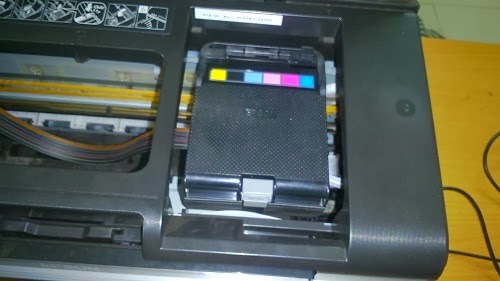
Step 3: Press and hold ink key until tape ink cartridge in position as picture following:


Step 4: Now you open the cover printhead
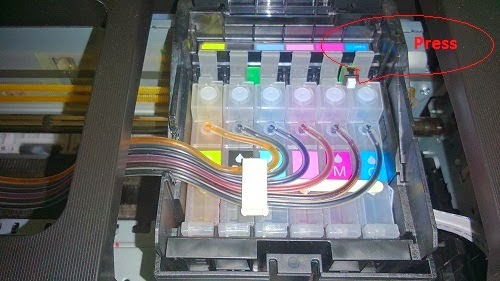
Step 5: Then Press and hold key on the tape ink chip about 20 seconds then close the cover printhead


Restart your printer to complete!

E-mail Newsletter

Sign up now to receive breaking news and to hear what's new with us.

© 2014 e Blogup. WP themonic converted by Bloggertheme9. Powered by Blogger.
TOP